இன்வென்டரியில் புதிய மூலப்பொருள் சேர்த்தல்
இந்த வழிகாட்டி, மெர்சண்ட் செயலி மூலம் இன்வென்டரியில் ஒரு புதிய மூலப்பொருளை (Raw Material) எவ்வாறு சேர்ப்பது என்பதை விளக்குகிறது. இதில் பெயர், அளவீட்டு அலகு, தற்போதைய இருப்பு மற்றும் மொத்த மதிப்பு போன்ற விவரங்கள் அடங்கும்.
தொடங்குவதற்கு முன்
- மெர்சண்ட் செயலியில் உள்நுழைந்திருக்க வேண்டும்
- Inventory Module-க்கு Edit access வழங்கப்பட்டிருக்க வேண்டும்
படி 1: இன்வென்டரி மாட்யூல் திறத்தல்
- மெயின் நேவிகேஷன் பாரில் Inventory தேர்வு செய்யவும்
- Base Menu டேப் தேர்வு செய்யப்படவில்லை என்றால், அதை தேர்வு செய்யவும்
படி 2: புதிய மூலப்பொருள் சேர்க்க தொடங்குதல்
- Add New Material
 பொத்தானைத் தேர்வு செய்யவும்
 - புதிய மூலப்பொருள் படிவம் திறக்கப்படும்
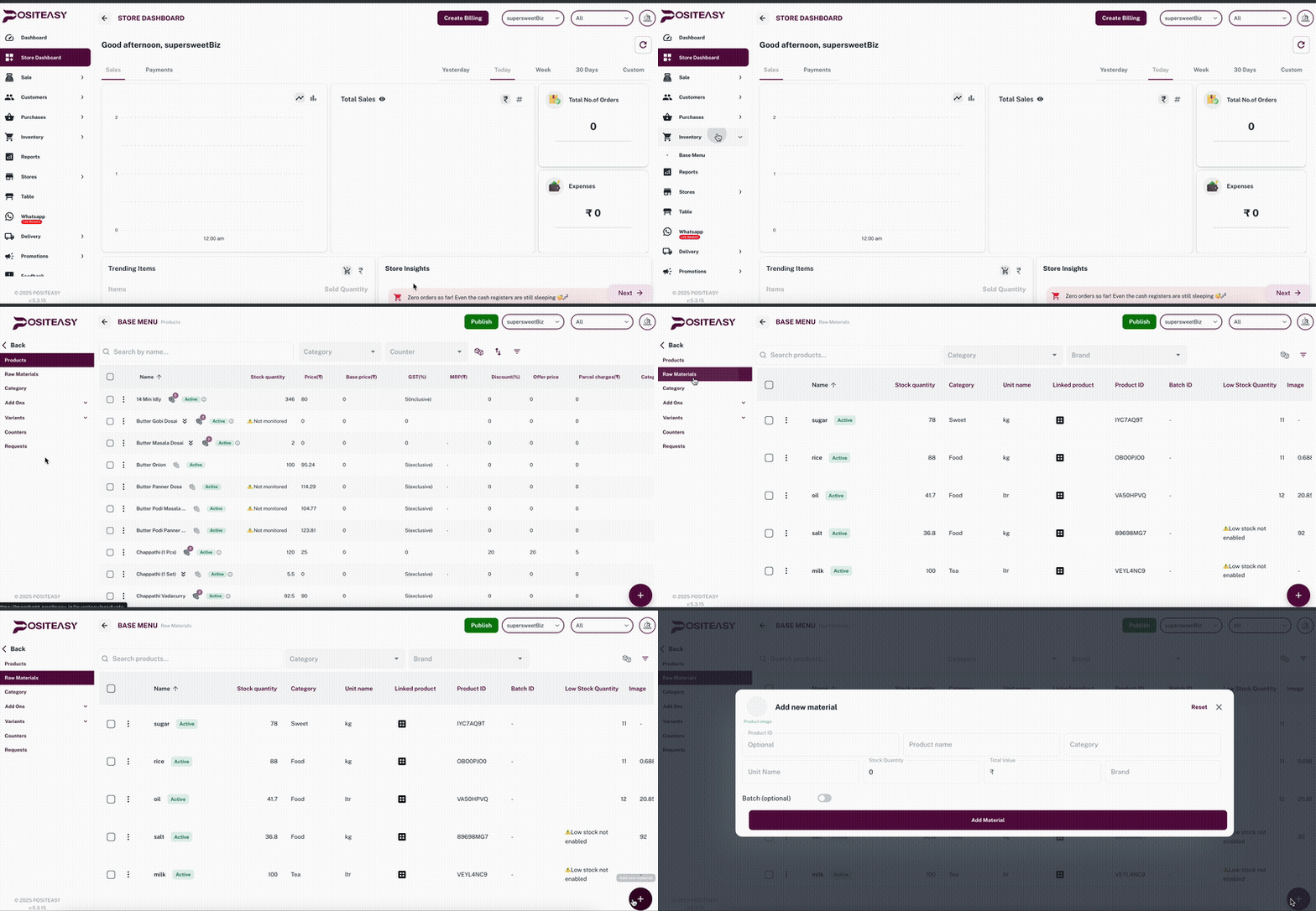
படி 3: அடிப்படை விவரங்கள்
Basic Details பகுதியில்:
- மூலப்பொருள் பெயர் – (எ.கா: அரிசி, எண்ணெய், மிளகாய்)
- கேடகரி – ஏற்கனவே உள்ள கேடகரி அல்லது புதிய கேடகரி
(எ.கா: Vegetables, Spices, Packing Materials) - அளவீட்டு அலகு (Unit Name) – (Gram, Litre, Piece)
- இருப்பு அளவு (Stock Quantity) – தற்போதைய இருப்பு
- மொத்த மதிப்பு (Total Value) – தற்போதைய இருப்பிற்கான மொத்த மதிப்பு
- பிராண்ட் – ஏற்கனவே உள்ள அல்லது புதிய பிராண்ட்
(எ.கா: India Gate, Aachi, TATA)
மூலப் பொருளை சேர்க்க Add material பொத்தானை அழுத்தவும்.
note
மூலப்பொருள் பெயர் தனித்துவமானதாகவும் சரியானதாகவும் இருக்க வேண்டும்.
அப்படியானால் மட்டுமே தேடல் மற்றும் அறிக்கைகள் சரியாக இயங்கும்.
படி 4: மூலப்பொருளை சேமித்தல்
- Add Material தேர்வு செய்து சேமிக்கவும்
- சேமித்த பிறகு சரிபார்க்கவும்:
- Inventory → Raw Materials பட்டியலில் காணப்படுகிறதா
- இருப்பு அளவு மற்றும் மொத்த மதிப்பு சரியாக பதிவாகியுள்ளதா
இந்த முறையில், மூலப்பொருட்களை துல்லியமாக, ஒழுங்காக, மற்றும் எளிதாக இன்வென்டரியில் நிர்வகிக்கலாம்.